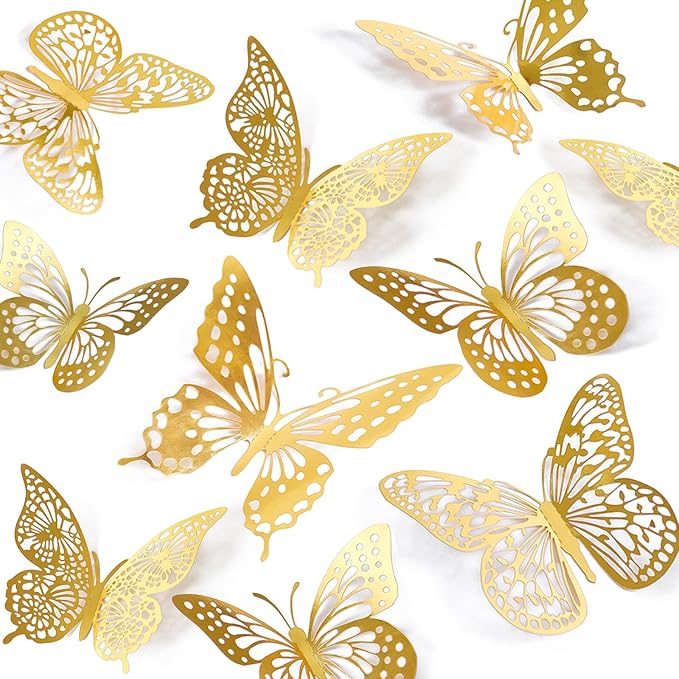
Dark birthday cards range from moody floral prints to full 3D pop-up builds, with a handful of milestone-specific designs built for a 21st, 42nd, or 50th birthday mixed in. The 26 cards below are ranked by how often other buyers have saved each one, from a butterfly-and-cat pop-up card at the top down to a milestone SVG with zero saves yet.
This birthday card library adds new SVGs, printables, and digital bundles every week, and every cut file here is print-ready at 300 DPI. Several also work as flat digital cards if you’d rather send them without printing anything.
See also: dark birthday aesthetic ideas.
Quick Answer: This guide covers 26 dark birthday card designs — 3D pop-up cards, Cricut paper-cut SVGs, printables, and milestone-specific templates — ranked from most-saved to least-saved. Each file is editable and available for instant download.
The most-saved cards in this list aren’t flat printables — they’re 3D pop-up builds that fold flat for shipping and rise into a scene when the card opens.
All files below are digital downloads. Cut and assemble the 3D and papercut designs from cardstock, print the flat cards and printables directly, and use the digital paper and backdrop bundles as layers in your own design. The list runs in order of popularity, so the top few are what other buyers have saved the most.
1. Butterfly and Cat Card
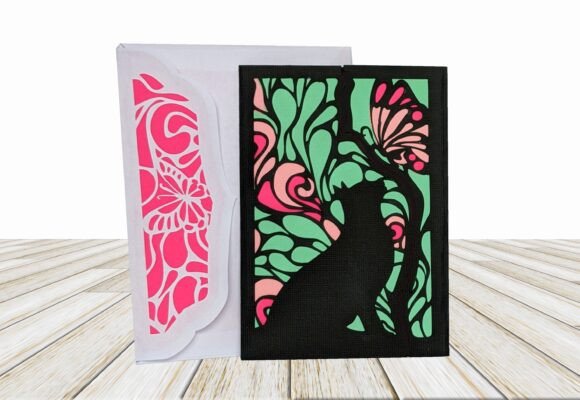
A 3D pop-up card with a butterfly perched over a cat silhouette, cut from layered cardstock so the scene lifts off the page when opened — the dimensional build is likely why it’s the most-saved file in this entire set. It ships flat for easy mailing and only pops into its full shape once the recipient opens it.
2. Music Set
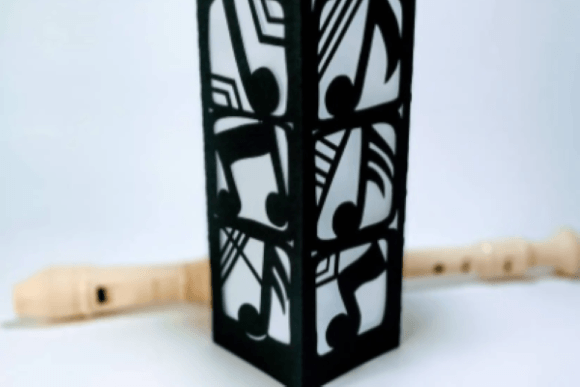
A layered 3D cut file built around a music theme — notes, a treble clef, and instrument silhouettes assembled into a standing card, less about the word “birthday” and more a themed gift for someone into music. Every layer is pre-scored, so assembly is mostly folding along guide lines rather than freehand cutting.
3. Panther Pop-up Card
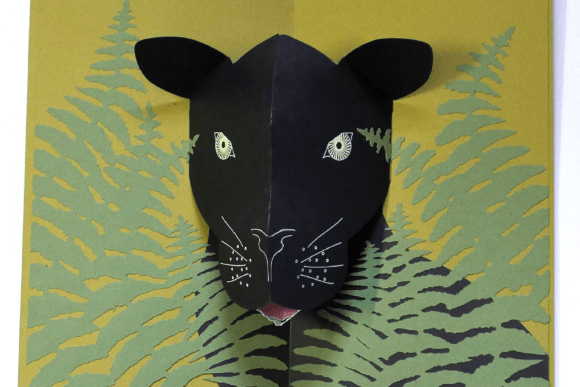
Another 3D pop-up design, this one built around a panther silhouette that rises off the card base when opened, aimed at buyers who want a bold animal-themed card rather than a typical birthday graphic. The dark, single-color silhouette style makes it stand apart from the pastel illustrated cards elsewhere in this list.
4. 50th Birthday, Aged to Perfection
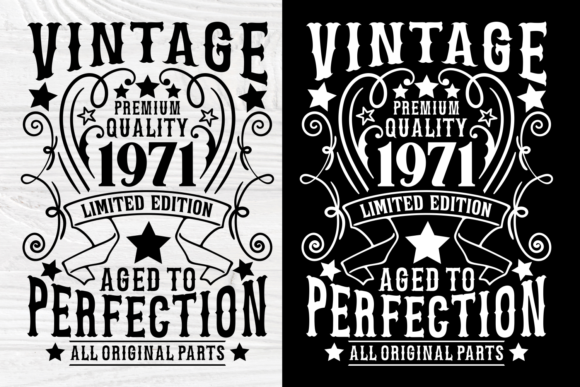
A 50th birthday-specific SVG built around an “Aged to Perfection” phrase, milestone wording baked directly into the design rather than left blank for you to fill in. It’s laid out for a laser cutter or Cricut, so the phrase comes pre-positioned rather than needing manual text placement.
5. Happy Birthday Digital Backdrop Bundle
A bundle of digital backdrop graphics for birthday photo shoots or social posts, sold as a set rather than a single card — useful if you need several coordinated background images at once. Because it’s a bundle, the styles vary enough to cover an invitation, a social post, and a printed backdrop from the same purchase.
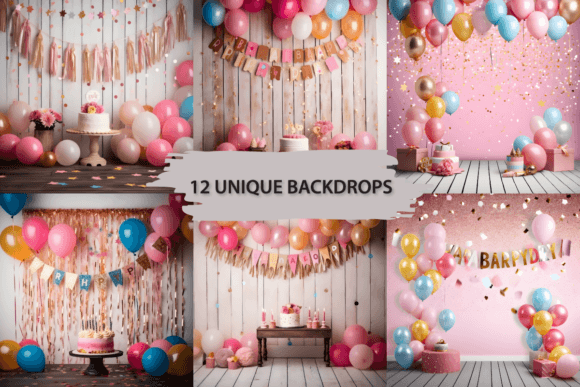
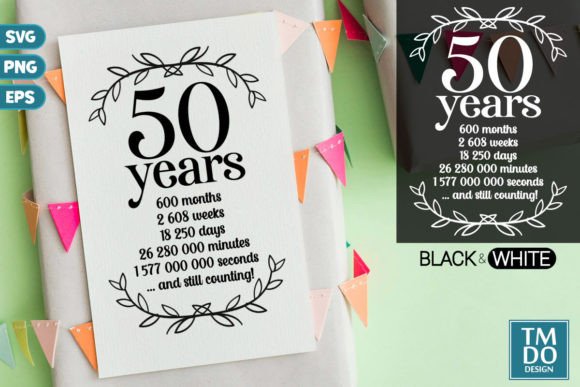
6. 50 Years Anniversary, 50th Birthday SVG
A second 50th-birthday design, this one framed as a 50-years-anniversary SVG, milestone-specific wording similar to the “Aged to Perfection” file above but with a different layout. Worth comparing both side by side if you want the exact phrasing and spacing to match your printer or cutter setup.
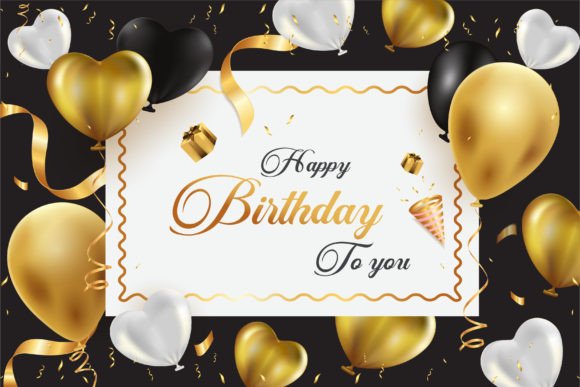
7. Happy Birthday Background
A flat birthday background graphic, simple enough to sit behind text or a photo without competing for attention — useful as a base layer under other design elements rather than a finished card on its own. It works best paired with your own typography rather than as a standalone printable.
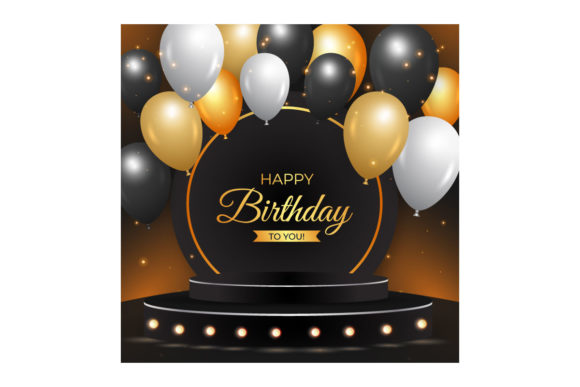
8. Birthday with 3D Podium and Balloons
An illustrated birthday scene with a 3D-rendered podium and balloon cluster, aimed at celebration or award-style birthday framing rather than a plain greeting card. The podium element makes it a stronger fit for a milestone or achievement-themed birthday than a casual one.
9. Cricut Birthday Card Paper Cut SVG
A Cricut-ready birthday card paper-cut SVG — this is the first of several near-identical listings in this set, cut for a home cutting machine and foldable into a standalone card. The pattern is simple enough to cut from standard cardstock without needing specialty paper.
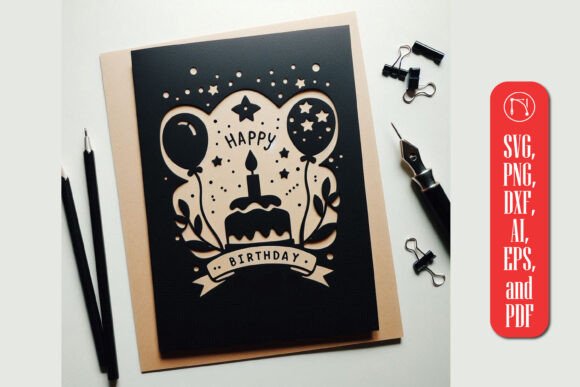
10. Cricut Birthday Card Paper Cut SVG
Second listing of the same Cricut paper-cut birthday card concept, worth comparing against the other versions in this list for exact layout and spacing before choosing one. The differences between listings tend to be minor: slightly different cut widths and fold positions.
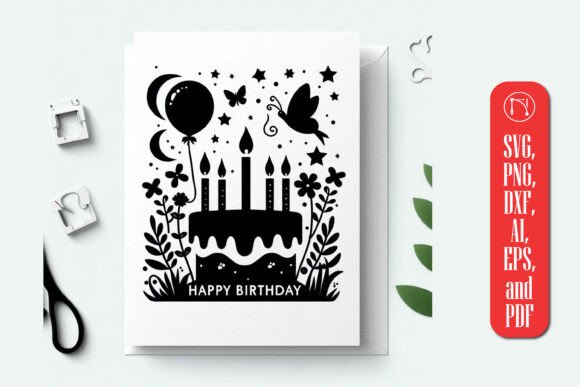
11. Butterfly Happy Birthday Card Printables
A butterfly-themed birthday card set sold as printables, illustrated rather than cut-file based, so it prints flat and folds like a standard greeting card. No cutting machine required — just a home printer and cardstock.
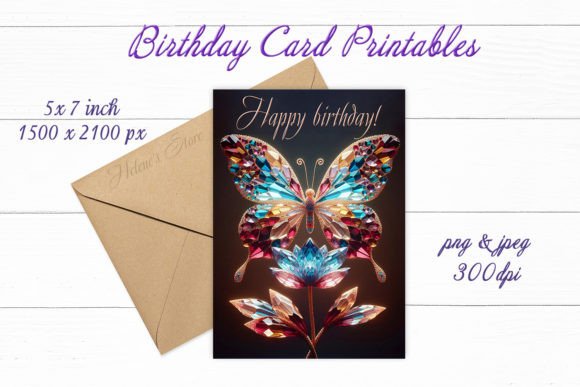
12. Cricut Birthday Card Paper Cut SVG
Third listing of the Cricut birthday card paper-cut SVG family, same papercraft build as the two versions above from the same creator. If you’ve already tried one and want a slightly different look, this is the next closest match.
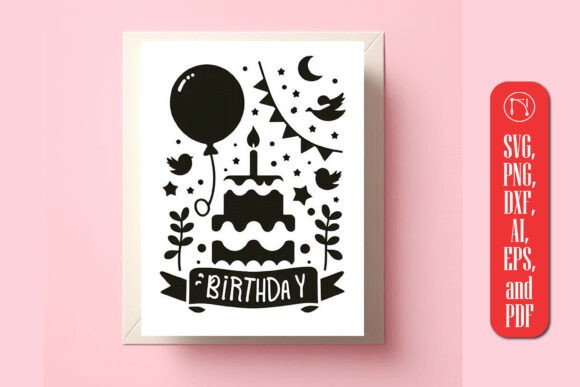
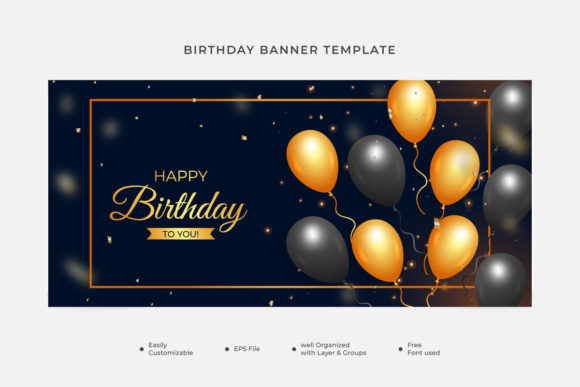
13. Birthday Banner Golden Black Balloons
A birthday banner design combining gold and black balloon graphics along a printed strip, meant for wall decoration rather than a card itself, but useful if you’re building a matching card-and-banner set. It prints across multiple sheets that tape together into one long strip.
Browse All Birthday Card Designs →
14. Butterfly Happy Birthday Card Printables
Second version of the butterfly-themed birthday card printable set, same illustrated style as the one above with a different layout arrangement. Choosing between the two mostly comes down to which butterfly placement you prefer on the front panel.
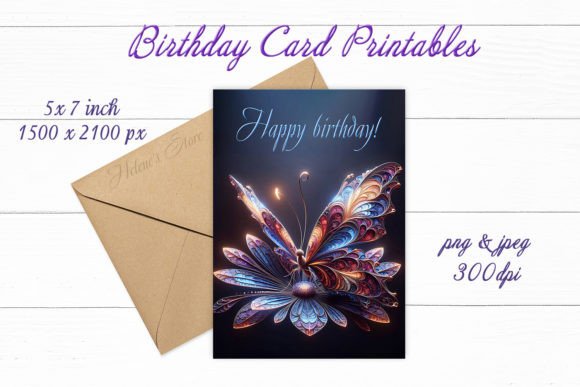
15. Birthday Gift Card with Dark Background
A birthday gift card design set against a dark background, the closest match in this list to a strictly “dark aesthetic” card rather than a bright illustrated one. The dark backdrop makes gold or metallic foil text stand out more than it would on a light card.

16. Cricut Birthday Card Paper Cut SVG
Fourth listing of the Cricut birthday card paper-cut SVG series, rounding out the papercraft family with yet another spacing variation to compare. With four versions to choose from, it’s worth opening each listing page to check exact dimensions before committing to one.
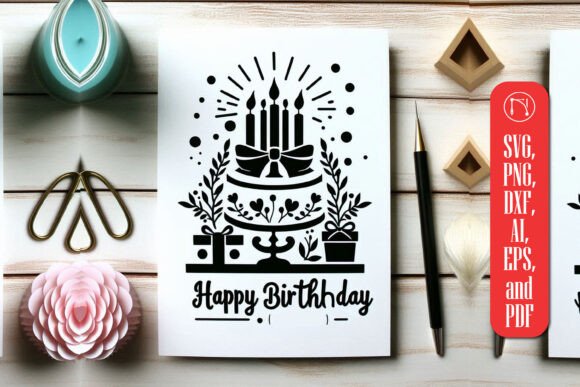
17. Happy 21st Birthday SVG Laser Papercut
A laser-cut SVG built specifically for a 21st birthday, milestone-specific wording and layout rather than a general-purpose card template. The design is sized for a standard laser cutter bed, so no resizing should be needed before cutting.
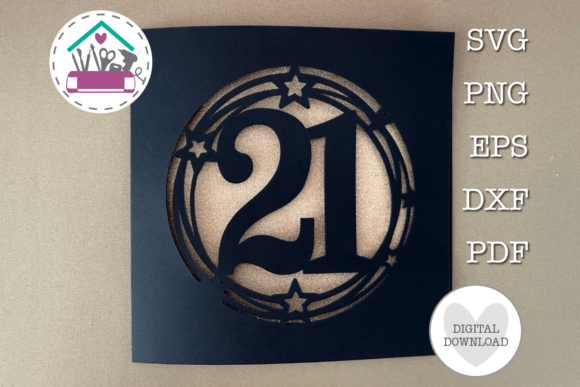
18. Happy Birthday Digital Papers
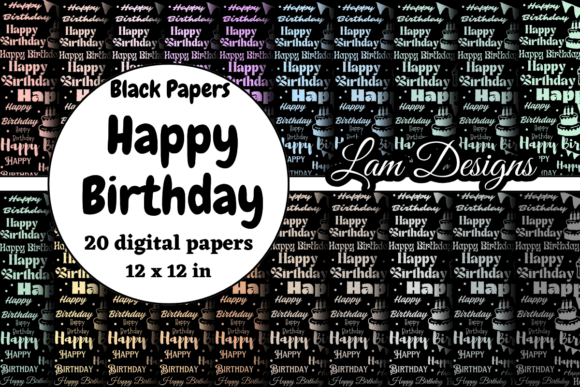
A digital paper pack themed around birthdays, meant as a background layer for scrapbooking or card-making projects rather than a standalone finished card. Each sheet in the pack can be combined with your own text or clipart for a fully custom result.
19. Butterfly Happy Birthday Card Print File
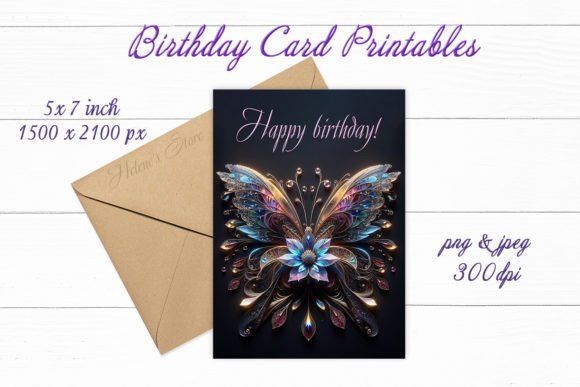
A print-file version of the butterfly birthday card, formatted for direct printing rather than the Canva-editable or cut-file formats seen elsewhere in this list. It’s the simplest option in the butterfly series if you just want to print and fold without editing anything.
20. Happy Birthday Papercut 10
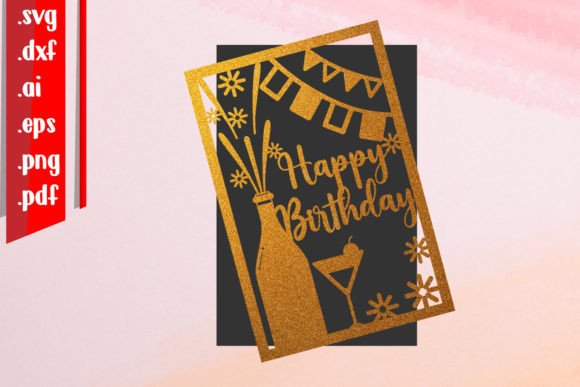
A birthday papercut design, one of a numbered series from the same creator, foldable into a 3D card once cut from cardstock. The numbering suggests a broader collection exists if this particular style fits your theme.
21. Butterfly Happy Birthday Card Printables
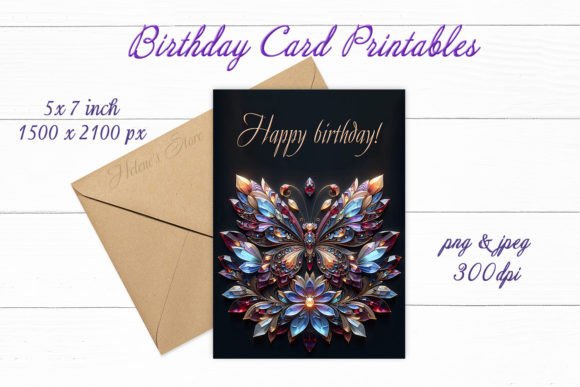
Third variation of the butterfly-themed birthday card printable series, same illustrated approach as the two prior versions with its own layout. By this point in the series it’s worth comparing all three side by side for the exact wing position and color balance you want.
22. Happy Birthday Vector Design
A flat vector-style birthday graphic, simpler and less decorated than the illustrated or 3D options elsewhere in this list — useful as a quick, low-effort card design. It’s a good starting point if you plan to add your own text or photo on top.
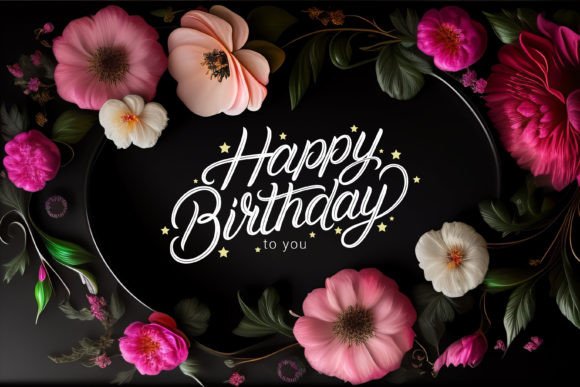
23. Birthday Card Dark Floral Premium Design
A premium birthday card design built around a dark floral motif, closer to a moody, elegant aesthetic than the brighter illustrated cards in this set. The floral linework is dense enough to work as a standalone front panel without needing additional decoration.
24. Happy Birthday Greeting Card Design with
A birthday greeting card design in a straightforward flat layout, useful as a simple base template if you plan to customize the text and colors yourself. The uncluttered layout leaves plenty of room for a personal message inside.
25. Happy Birthday Pixel Art Greeting Card W
A pixel-art styled birthday greeting card, a retro-gaming aesthetic that stands apart stylistically from every other design in this list. It’s a strong pick if the birthday person has any connection to retro games rather than a traditional card look.
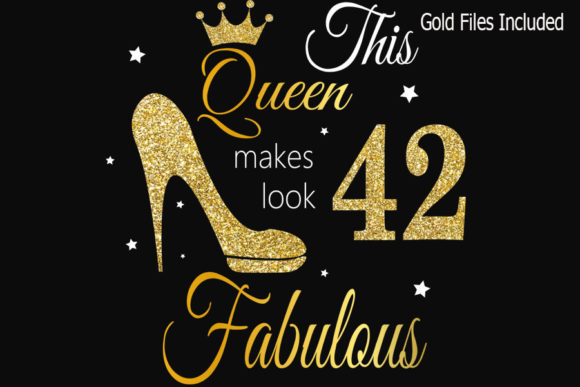
26. 42nd Birthday Svg, Queen Birthday 42nd S
A milestone SVG built for a 42nd birthday with a “queen” framing, specific wording and age already built into the design rather than left generic. Like the other milestone files in this set, the exact age is part of the artwork rather than an editable text field.
For more milestone-specific options, see our 50th birthday ideas collection.
Key Takeaways
- The most-saved designs in this set are 3D pop-up cards, not flat printables — factor in cutting and assembly time before choosing one.
- The Cricut paper-cut SVG series appears four times from the same creator with small layout differences — compare all four before picking one.
- Milestone-specific designs (21st, 42nd, 50th) already have the age and wording built in, so they’re not blank templates.
- Digital paper and backdrop bundles work as layers for your own design rather than as finished, standalone cards.
Frequently Asked Questions
Do the 3D pop-up cards need special tools to assemble?
A home cutting machine like a Cricut or Silhouette handles the cuts — assembly after that is just folding and gluing along the pre-scored lines.
What’s the difference between the four Cricut paper-cut SVG listings?
They’re the same core papercraft concept from one creator with small spacing and layout variations — compare each listing page before choosing.
Can I edit the milestone-specific designs to a different age?
Some are editable text layers and some have the age baked into the artwork — check the listing’s file format details before assuming you can change the number.
Are the digital paper and backdrop bundles printable?
Yes — most print cleanly on cardstock, though they’re designed to be used as a background layer in a larger project rather than a finished card by themselves.
Do the milestone SVG designs include a card base, or just the number?
Most listings include a full pop-up or layered card base with the milestone number built into the design, not just a standalone number cutout. Check the listing’s file preview to confirm the base shape before assuming it comes as a complete card.