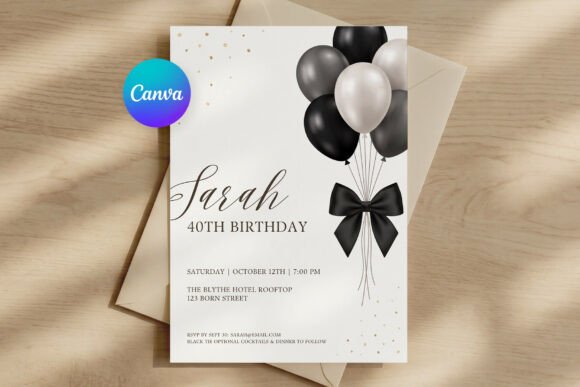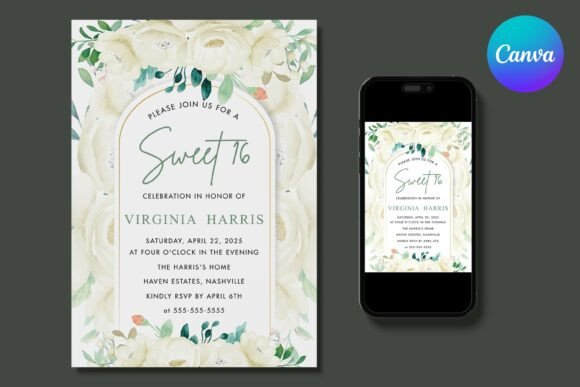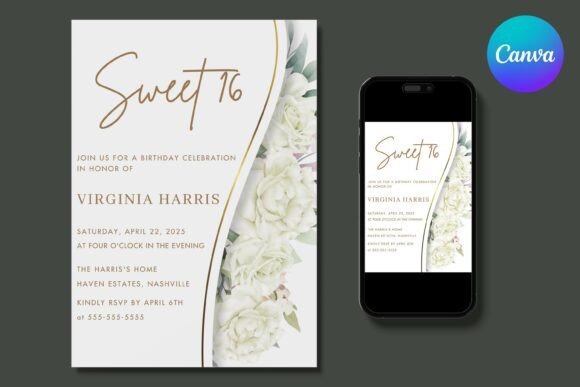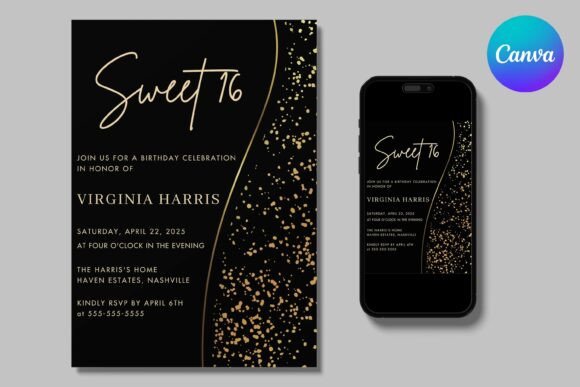
Black-and-white birthday designs strip a template down to line, shape, and contrast — no color palette to match, no gradient to fight with a busy background. The 27 designs below cover hand-drawn doodle bundles, monochrome clipart, line-art posters, and cut-ready SVG sets built around that same restrained look.
This birthday doodle and clipart library runs into the thousands, with black outline, silhouette, and engraved-style sets added every week. Most files here are ready for Cricut or Silhouette cutting, sublimation printing, or straight placement into a card or invitation layout.
See also: black and white aesthetic birthday for more monochrome party styling ideas.
 Pin it
 Pin it
 Pin it
 Pin it
Quick Answer: This guide covers 27 black-and-white birthday designs — hand-drawn doodle bundles, digital stamps, line-art posters, and cut-ready SVG files. Each is editable and available for instant download for 2026.
A black outline doodle set works on almost any background color, while a solid silhouette or engraved-style design needs a plain backdrop to stay readable.
 Pin it
 Pin it
 Pin it
 Pin it
 Pin it
 Pin it
 Pin it
 Pin it
 Pin it
 Pin it
 Pin it
Most files here are digital downloads. Drop them into a card layout, cut them on a Cricut or Silhouette, or print them straight from the PNG or JPG file.
Hand Drawn Birthday Doodle
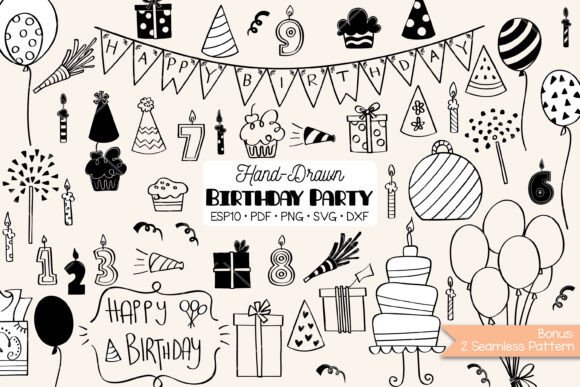
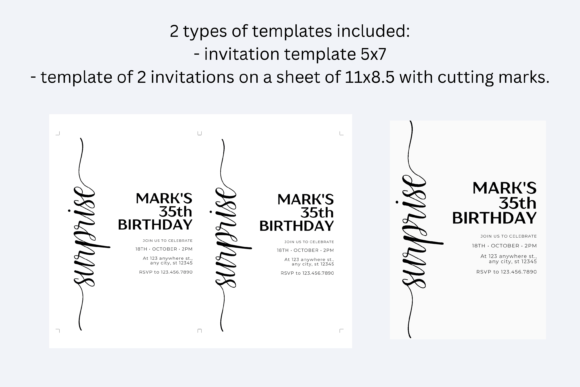
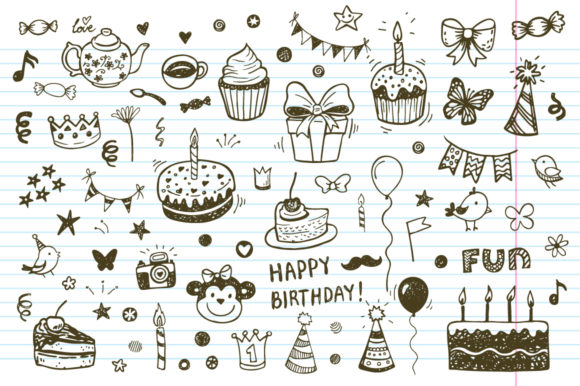
A bundle of hand-drawn festive doodles — balloons, cakes, gifts, number candles, banners — in black outline, black cutout, black silhouette, black & white, and black engraved styles, plus 2 bonus repeating patterns. Delivered as 275 PNG, 275 SVG, 165 DXF, 5 EPS, 5 PDF, and 2 JPG files.
Birthday Party Doodle Icons + Patterns
77 white and 77 black doodle elements on transparent PNG backgrounds, plus a fully editable grouped EPS10 vector file and a brown-on-white repeating background pattern in 4 color variations.
Happy Birthday Bundle
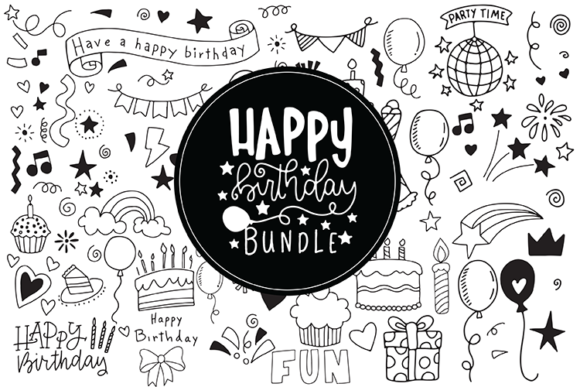
Over 150 birthday card and party favor elements in SVG, EPS, and DXF formats, covering cakes, candles, balloons, and decorative accents for building custom card designs.
Birthday Dinosaur
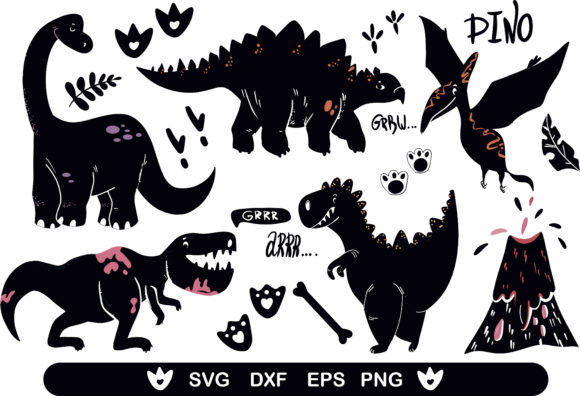
18 dinosaur clipart elements in EPS, PNG, DXF, and SVG formats, built for kids’ dinosaur-themed birthday invites, nursery prints, and clothing designs.
Party Balloons Doodles — Birthday Decor
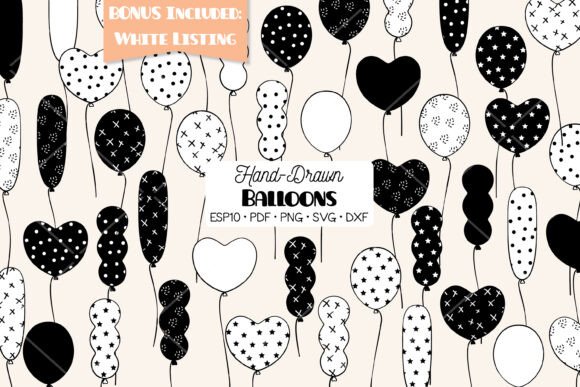
A set of hand-drawn balloon doodles in heart, long, round, and wavy shapes across black-and-white, white-and-black, black outline, and white outline styles. Delivered as 120 PNG, 120 SVG, 6 EPS, 6 PDF, and 20 DXF files.
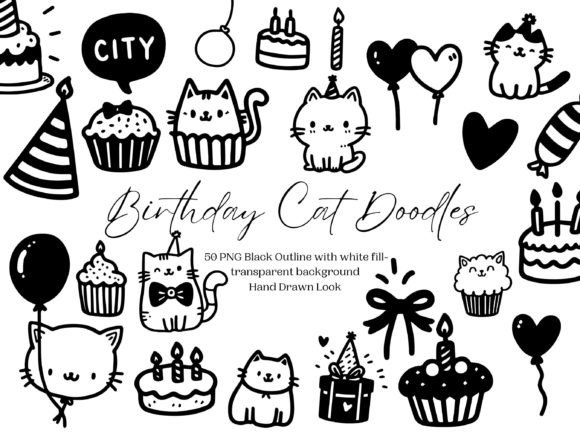
Birthday Cat Doodle PNG Clipart Bundle
50 hand-drawn cat illustrations with black outlines and white fill on transparent PNG backgrounds — cats in party hats with balloons and candle-lit cupcakes, suited for invitations and greeting cards.
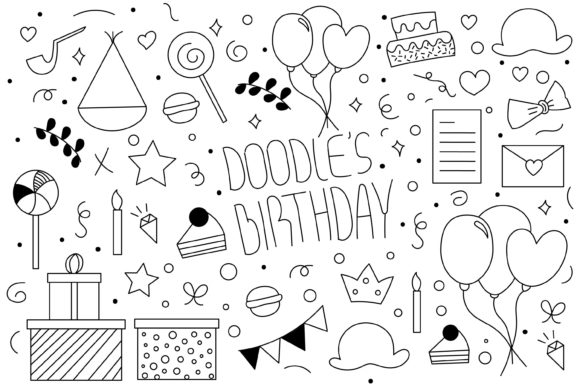
Doodles Birthday
A doodle set delivered across 6 file types — Adobe Illustrator, EPS10, PSD, PDF, 300 dpi JPEG, and PNG — built for straightforward print projects.
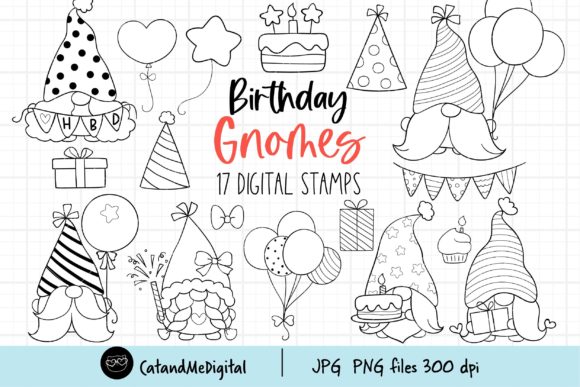
Birthday Gnomes Digital Stamp
17 transparent PNG and 17 white-background JPG digital stamp files sized 5 to 10 inches, plus a bonus JPG coloring page — a gnome-themed pick for stickers, cards, and coloring activities.
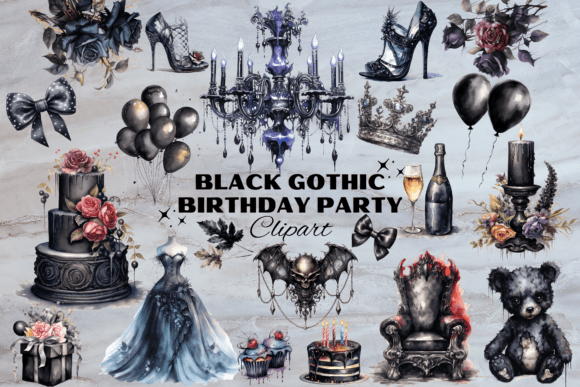
Dark Gothic Birthday Party Elements
28 high-quality transparent PNG files featuring ornate cakes, elegant dresses, candles, and a mysterious teddy bear rendered in dark gothic detail with lace-pattern accents.
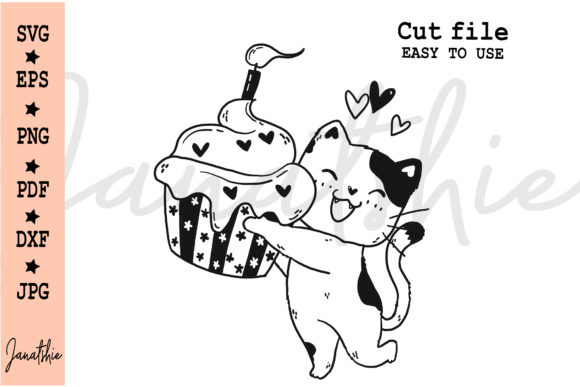
Cute Cat Muffin Birthday Cut File Svg
A cat-with-candle-muffin cut file in EPS, transparent PNG, DXF, SVG, PDF, and CMYK JPG formats, sized for Cricut and Silhouette cutting projects.
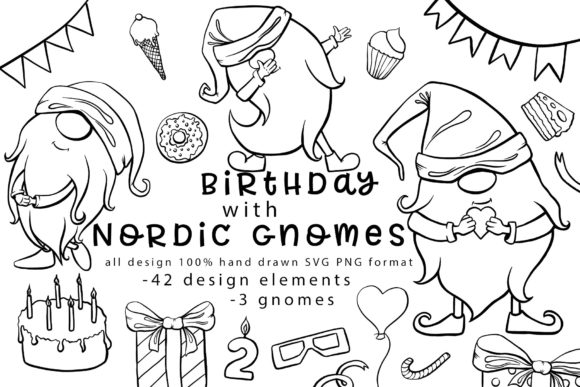
Birthday with Nordic Gnomes 100% Hand-drawn
3 hand-drawn gnome images plus 42 design elements — numbers, sweets, cupcakes, cakes, donuts, candles — in SVG and transparent PNG formats at 300 DPI.
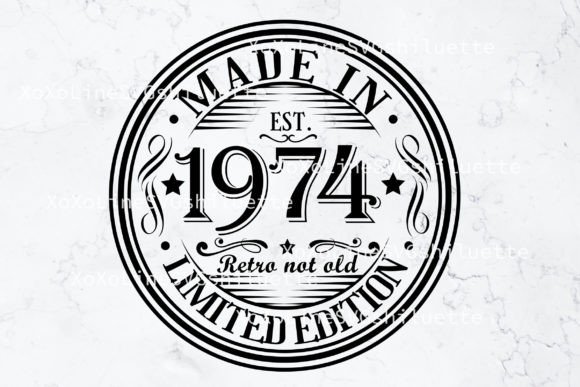
50th Birthday Svg, Born In1974 Design
A layered, cut-ready 50th birthday SVG design in SVG, EPS, and transparent PNG formats at 300 dpi, sized 10×10 inches for printing and sublimation.
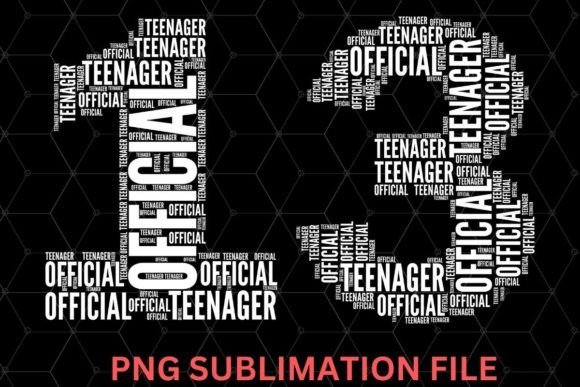
13th Birthday Official Teenager PNG
A single high-quality sublimation-ready PNG file celebrating the transition into teenage years, styled for custom apparel, banners, and party decorations.
Want to see more monochrome birthday styles? Browse All Birthday Designs →
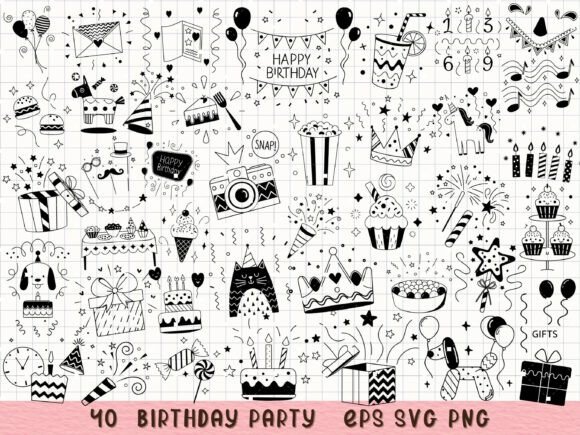
Birthday Party SVG Party Decorations
A 40-piece hand-drawn doodle bundle — cakes, cupcakes, balloons, party hats, fireworks, gifts, crowns, drinks, and ice cream — with clean outlines, suited for Cricut and Silhouette projects.
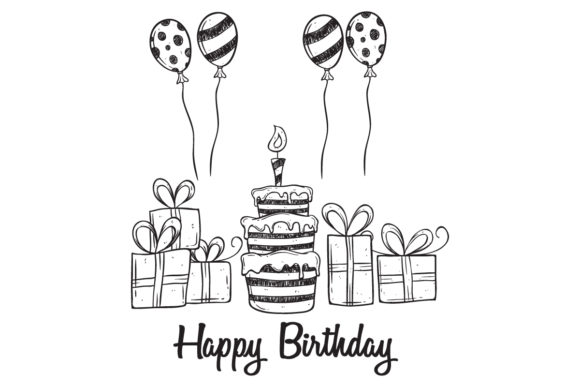
Doodle Birthday Cake and Balloon
A fully vector cake-and-balloon doodle in RGB color, delivered as AI, EPS, and JPG files, compatible with Illustrator and CorelDraw.
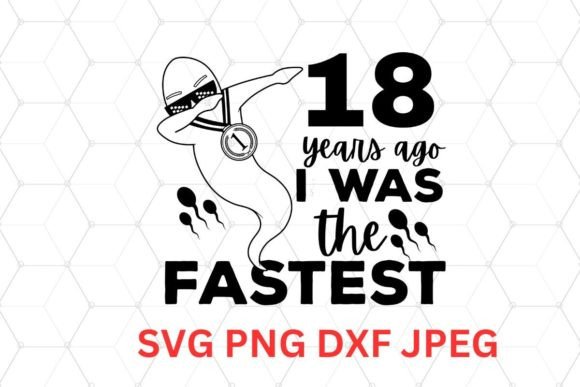
Hilarious 18th Birthday SVG Bundle
A humor-themed 18th birthday bundle in SVG, PNG, DXF, and JPEG formats, built for custom t-shirts, cards, banners, and cake toppers via Cricut or Silhouette.
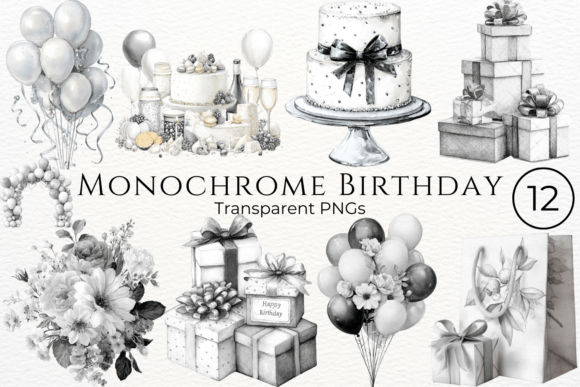
Monochrome Birthday Watercolor Clipart
A watercolor-style clipart bundle in transparent PNG format at 4000x4000px, 300 DPI, suited for cards, digital art, and web use.
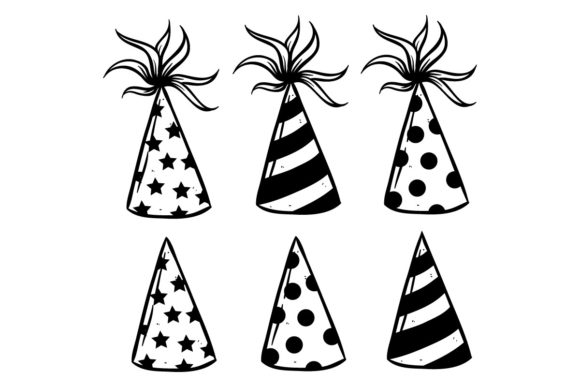
Birthday Hat Collection
A fully vector birthday hat collection in RGB color, delivered as AI, EPS, and JPG files, compatible with Illustrator and CorelDraw.
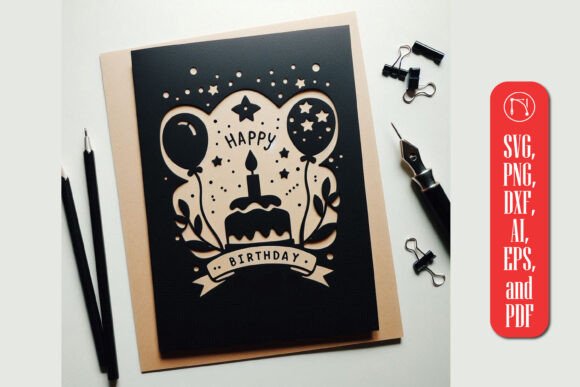
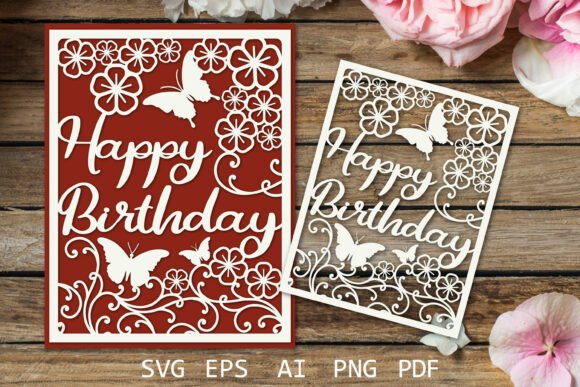
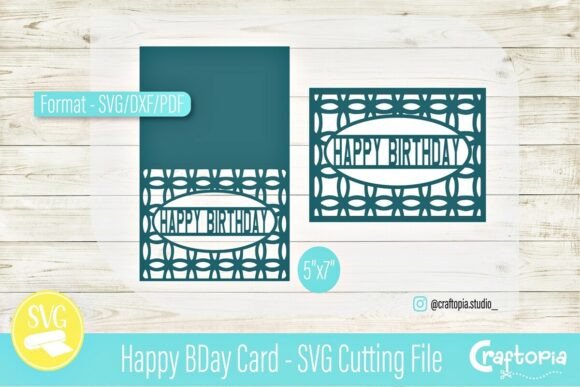
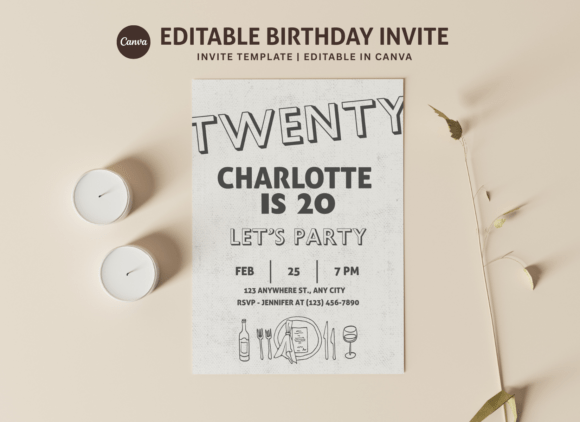
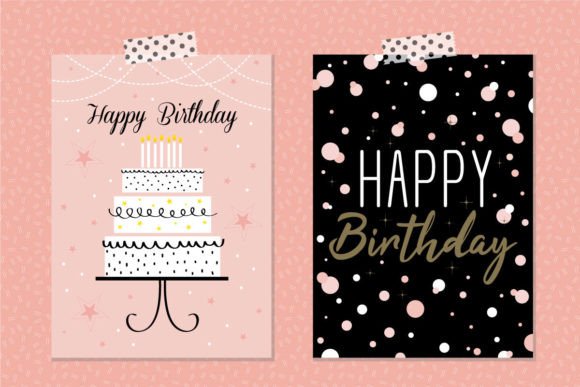
Birthday Greeting Card Design
A straightforward birthday greeting card graphic, useful as a base layout for building a custom monochrome card design.
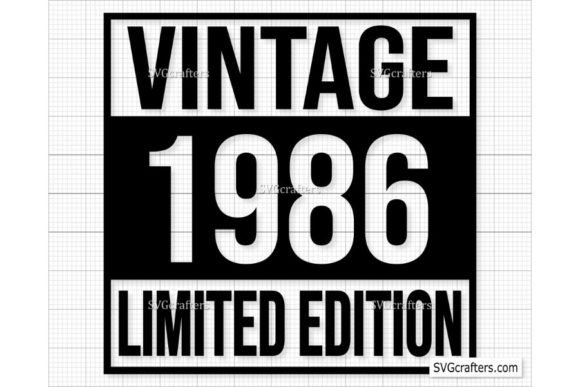
Vintage 1986 Svg Png, 36th Birthday Svg
A layered vintage-style birthday year SVG in SVG, DXF, transparent PNG, JPG, EPS, and PDF formats — compatible with Cricut and Silhouette for shirts, mugs, and cards.
Birthday Cake Silhouette Clipart
A single-color birthday cake silhouette delivered as an editable EPS file, with every element modifiable in Illustrator or similar vector software.

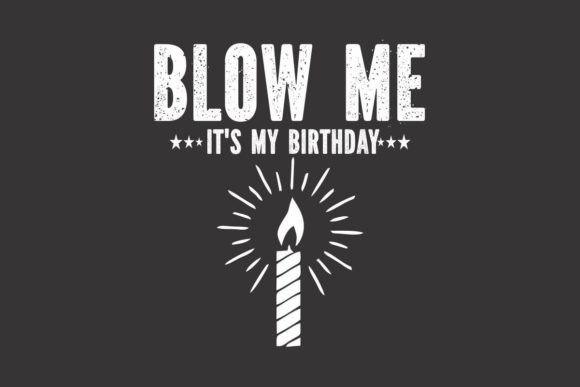
Blow Me It’s My Birthday
A playful birthday phrase design delivered as SVG, DXF, and transparent PNG (4500×5400, 300 dpi) files, suited for shirts, mugs, and vinyl decals.
Birthday Background with Balloons
A balloon-filled birthday background delivered as an EPS file plus a JPG preview, requiring Adobe Illustrator for editing.

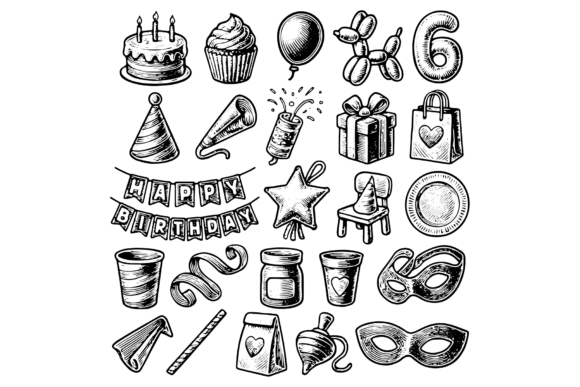
Birthday Party Icons Hand Drawn
A hand-drawn icon set — cake, cupcakes, balloons, gifts, hats, confetti, banner, candles, masks — in a vintage engraving-style black-and-white illustration set, ideal for invitations and posters.
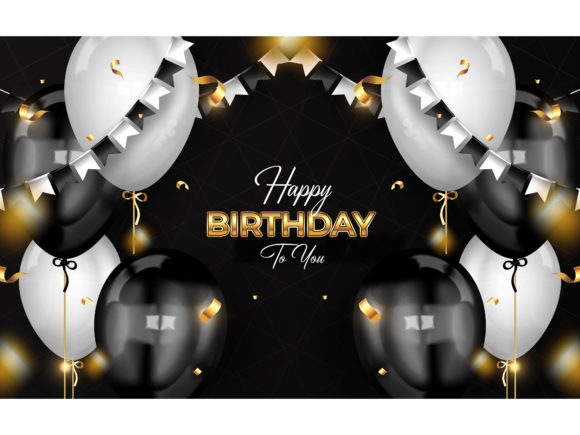
Happy Birthday Celebration Background
A celebration-themed background delivered as an EPS file plus a JPG preview, requiring Adobe Illustrator for editing.
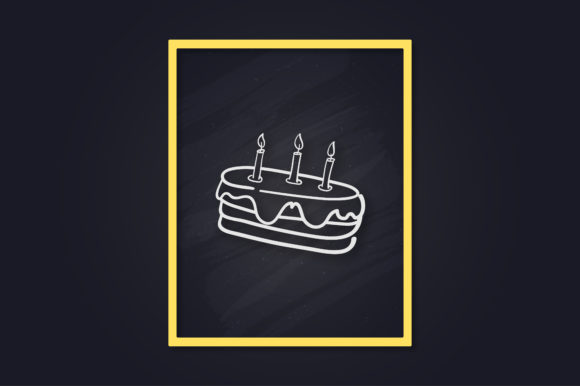
Birthday Cake Line Art Poster
A line-art birthday cake poster in Adobe Illustrator, 300 DPI JPEG, and scalable SVG formats — fully editable stroke weight and color, with a mockup preview included.
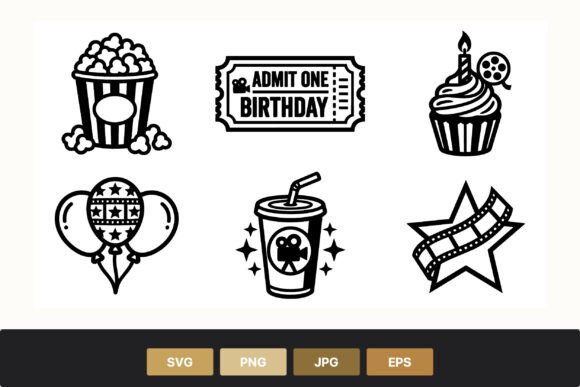
Birthday Movie Party Icons
A movie-night themed icon set — popcorn bucket, birthday ticket, cupcake with candle, star with film strip, balloons, soda cup — in SVG, PNG, EPS, and JPG formats.
For more dark and monochrome party inspiration, see our dark birthday aesthetic collection.
What a Black and White File Tells You Before You Download It
Line art and doodles look simple, so it is easy to assume any of them will drop onto your card. Out of 33 black and white birthday and party designs on sale at Creative Fabrica, 21 include a PNG, 16 an SVG and 12 an EPS or AI file. Only 10 say the background is transparent, 8 give 300 dpi, 7 give a size in pixels or inches and 3 mention commercial use.
- Want it on coloured paper? You need transparency. A PNG without a transparent background prints as a white box on kraft or pastel card. If the listing does not say, open the preview on a dark background first.
- Want to cut it? You need the SVG. A Cricut or Silhouette cuts the SVG cleanly; tracing a PNG gives rough edges on thin doodle lines.
- Printing large? Check the size. A doodle at 1000 px wide looks fine on a 4×6 tag and blurry on an A4 poster. Without a stated size, use the vector file.
- Selling what you make? With so few files naming commercial use, read the licence on the product page before you put the design on mugs or shirts.
Printing and Sending a Black Design
Black-heavy designs behave differently on paper and on a phone, so decide where yours will be seen before you export.
- Phone, Instagram or WhatsApp: export a PNG at the standard Canva size. Black looks deepest on phone screens.
- Home printer, 5×7 or A5: export as PDF Print, not JPG, because JPG adds noise to flat dark areas. Use matte cardstock of at least 200 gsm.
- Print shop: send a PDF Print at 300 dpi and ask for one proof. Some printers turn pure black slightly purple or brown.
- Background under text: a quiet texture, such as a soft brush stroke or matte grain, keeps your text readable; glitter and marble look best with very little text on top.
Key Takeaways
- Black outline and silhouette doodles work on any background color, while engraved-style or solid-fill designs need a plain backdrop to stay legible.
- Most bundles here include SVG, PNG, and DXF files together, so the same set covers both print layouts and Cricut or Silhouette cutting projects.
- Single-file designs like the line-art poster or cake silhouette are meant as a base layer for building a custom card, not a finished multi-piece kit.
- Bundle size varies widely — from a single graphic to a 275-file doodle set — so check the file count before assuming a design includes everything needed for a full invitation suite.

Frequently Asked Questions
Do these designs work for Cricut or Silhouette cutting?
Many of them do — look for SVG or DXF files in the format list. Bundles that only include PNG, JPG, or EPS files are meant for print or digital use rather than cutting machines.
Can I recolor a black-and-white design?
SVG and EPS files can be recolored in Illustrator, Cricut Design Space, or similar vector software. Flat PNG or JPG files are harder to recolor without extra editing tools.
What’s the difference between a doodle bundle and a digital stamp set?
Doodle bundles are usually loose individual elements — balloons, cakes, candles — meant to be arranged into your own layout. Digital stamps are typically sized as standalone images ready to print or stamp directly onto a card or tag.
Are these designs suited for sublimation printing?
Several are labeled sublimation-ready at 300 DPI, but check each product’s file list — sublimation needs a high-resolution PNG or JPG rather than a vector-only file.
Can I use these black-and-white designs for both digital and print projects?
Yes — the vector formats work equally well printed on cardstock or used as a digital sticker or overlay, while the flat PNG and JPG files are better suited to digital placement since they can’t be resized as cleanly.
In what order should I edit a dark Canva template?
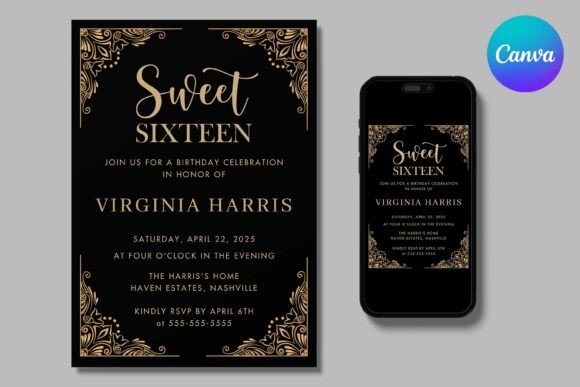
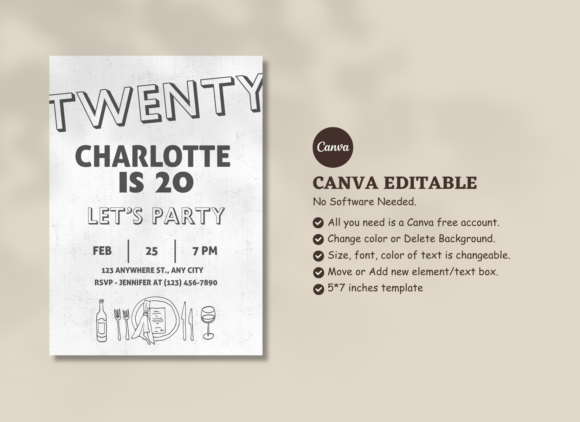
Change the name first, then the date and time, then the venue, and only then swap fonts or touch the background. Dark templates often use a near-black such as charcoal or deep navy, so if you add a shape behind new text, pick the exact background colour with the colour picker to avoid a visible join.
Why does my black design print grey or streaky at home?
Most home inkjets lay down black in passes, and glossy or thin paper shows each pass. Print on matte cardstock, set the printer to its best quality, and let the sheet dry for a minute before you stack it.