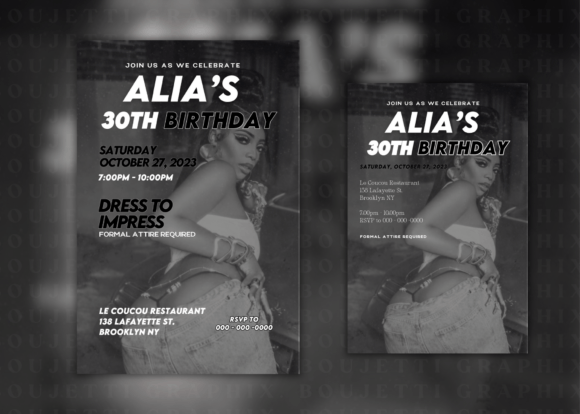
Best birthday template aesthetic black in Canva: Open any dark Canva template, change the name field and event date first, then swap the font if needed. Don’t touch the background or layout until the core text is set — moving elements before the text locks in is where most edits go wrong. black birthday theme aesthetic
You found a black aesthetic birthday template that looks right. You open it. Ten minutes later you’ve accidentally moved the layout, the font isn’t matching the background, and it looks less polished than when you started.
Here’s how to edit these templates in a way that keeps the aesthetic intact — with specific picks that edit without fighting you.
How to Use the Right Template for the Right Occasion
Not every black template works for every event. A gothic multi-layer floral works for a grown-up milestone birthday. A clean black-and-gold invite works for a 16th or 18th. A customisable text-forward template works when the design should stay in the background and the message comes first.
Match the template complexity to the audience:
- Kids’ birthdays (dark aesthetic): Keep it simpler — one central design element, big font
- Adult milestones (30, 40, 50): Typography-led, monogram, or editorial layout
- Teens (16, 18): Gold accent on black, or gothic/alt aesthetic depending on the person
- General dark party invites: Clean black with editable text layers — most versatile
Black Aesthetic Birthday Template Picks — Canva Editable
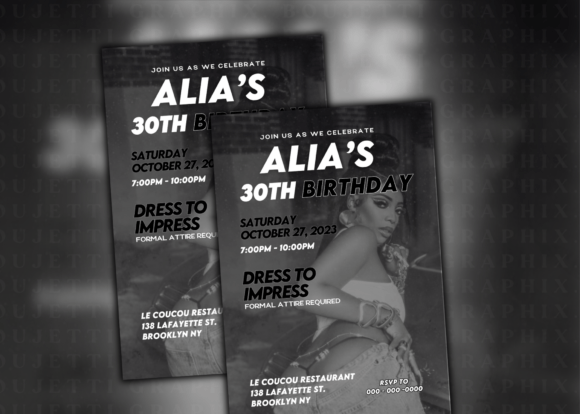
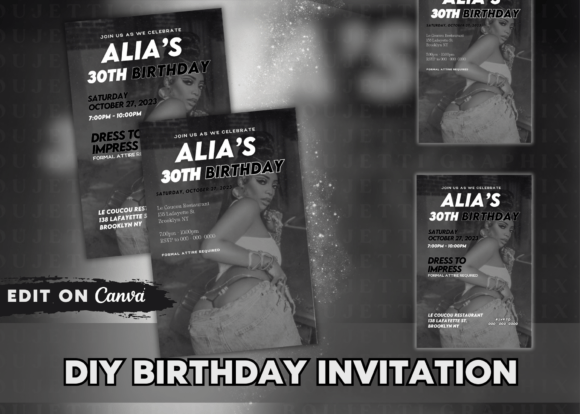
Customisable Black Invitation — Canva Direct
Personalised Birthday Invitation — Black Base
What to Edit First (and What to Leave Alone)
Most dark aesthetic templates fail in editing because people move things before setting the text. Here’s the order that works:
- Name field first — adjust font size to fit, don’t change the font yet
- Date and time — keep the same size ratio as the original
- Location or venue — if not included in the template, add a text layer rather than editing a decorative element
- Font swap (if needed) — only after text is set. Choose fonts with similar weight to the original so the layout doesn’t shift
- Background last — if you want to darken or add texture, do it after everything else is placed
One thing people miss: Canva’s dark templates often use background colours slightly different from pure black (#000000) — usually a very dark navy or charcoal (#0a0a0a, #111827). If you’re adding any text elements, match the existing background colour exactly to avoid a visible join line between layers.
The happy birthday template aesthetic black guide has more options if the picks here are too formal or too casual for your event — it covers a wider range of styles including more minimal and more ornate designs.
Digital vs. Print — What Changes
Dark templates behave differently depending on where they’re shown:
- Instagram stories or posts: Export as PNG at the Canva default resolution. Dark templates look best on phone screens — the black holds true on OLED displays.
- WhatsApp invite: PNG, standard Canva export. Compress only if the file is above 10MB — below that, WhatsApp doesn’t add visible compression artefacts.
- Home print (A5 or 5×7): Export as PDF Print from Canva, not JPEG. JPEG compression adds noise to flat dark areas. Use cardstock — 200gsm minimum.
- Print shop: PDF Print, 300dpi, CMYK if the shop specifies it. Some print shops render pure black slightly purple — ask for a test print if the order is large.
The black aesthetic birthday full guide covers how templates fit into a complete party visual — backdrop, balloons, printable elements — if you’re building a cohesive look rather than just the invite.
Browse Black Birthday Invitation Templates
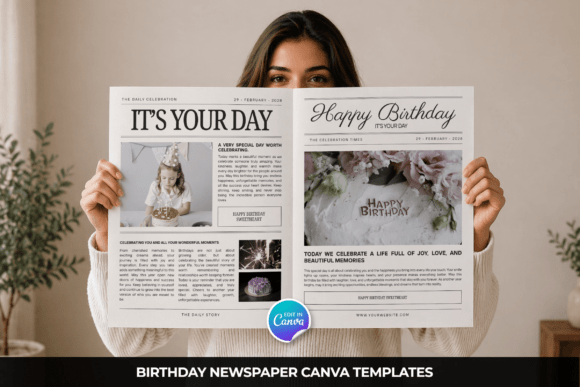
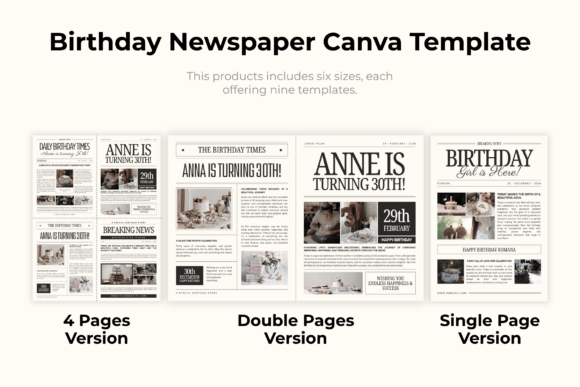
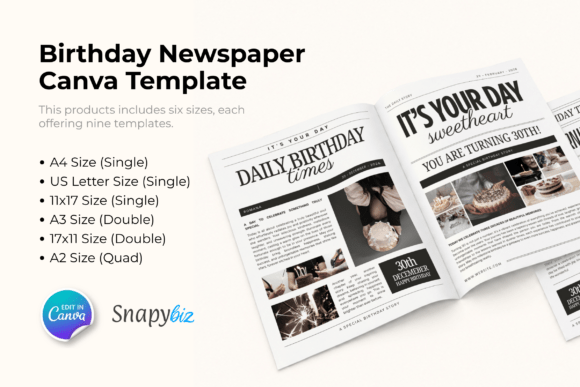
Birthday Newspaper Canva Template Graphic by SnapyBiz
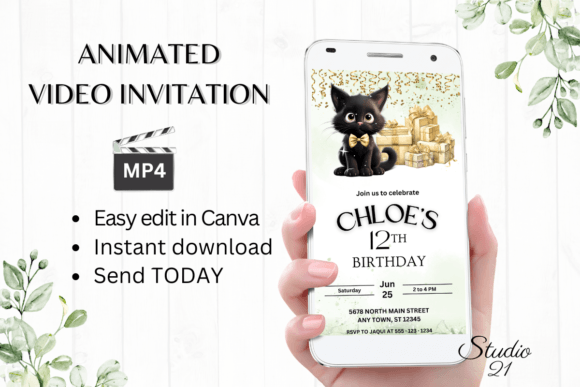
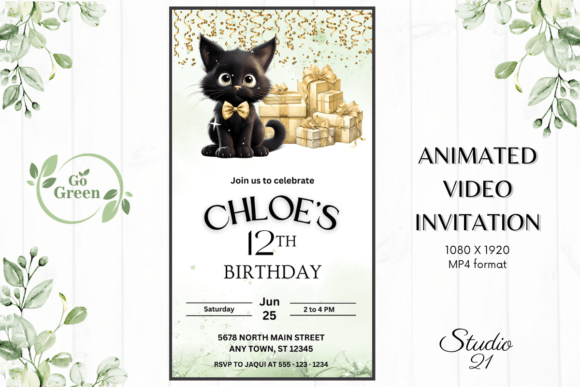
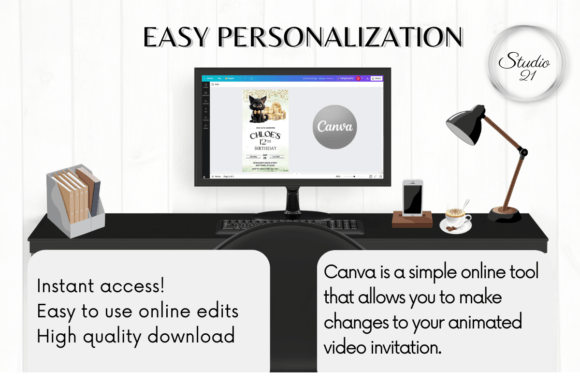
Cute Black Cat Birthday Invitation Graphic by Studio21
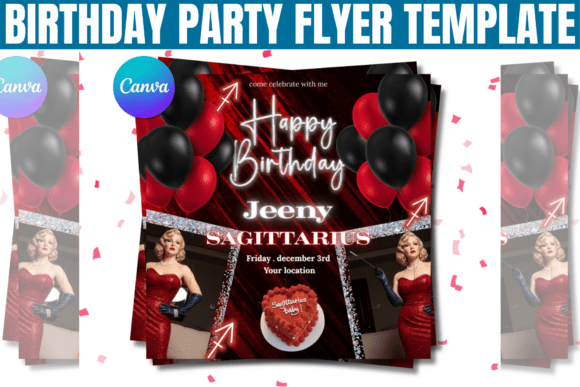
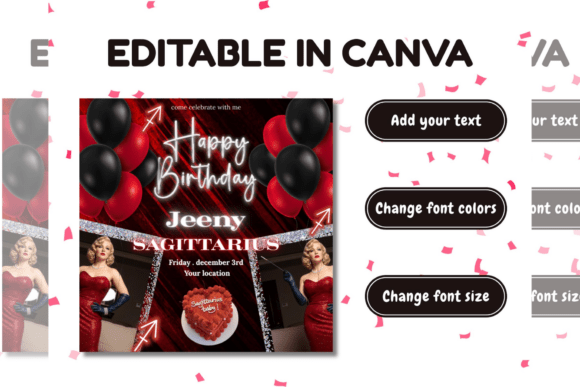
Birthday Party Flyer Template for Canva Graphic by Gfx Shaown
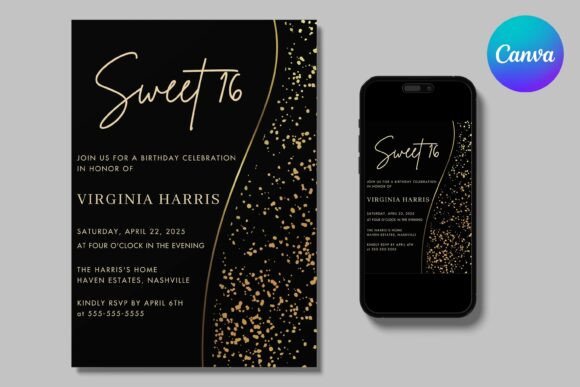
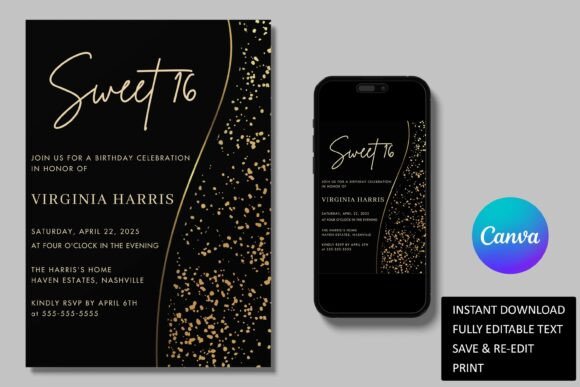
Gold Black Sweet Sixteen Birthday Invite Graphic by Lady Designs
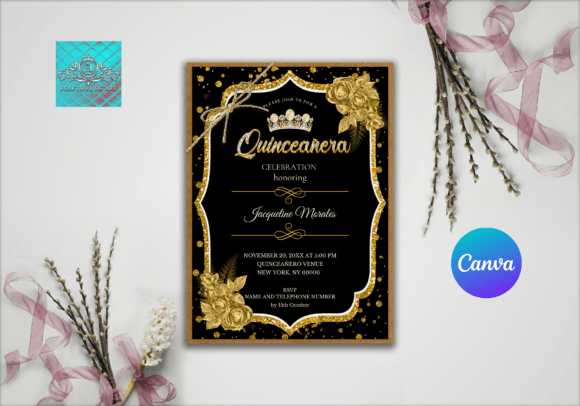
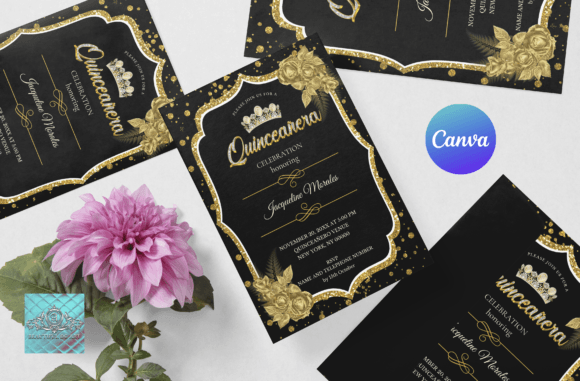
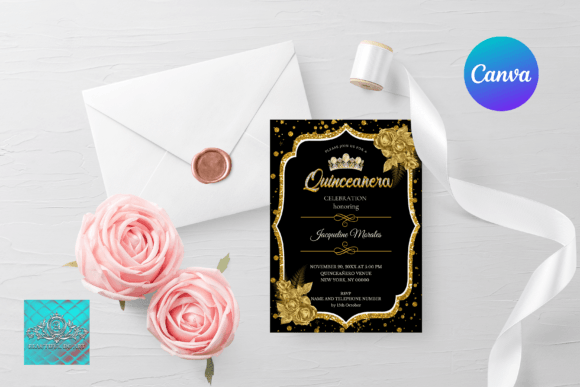
Black&Gold Quinceañera Birthday Invite Graphic by BEAUTIFUL DG ART
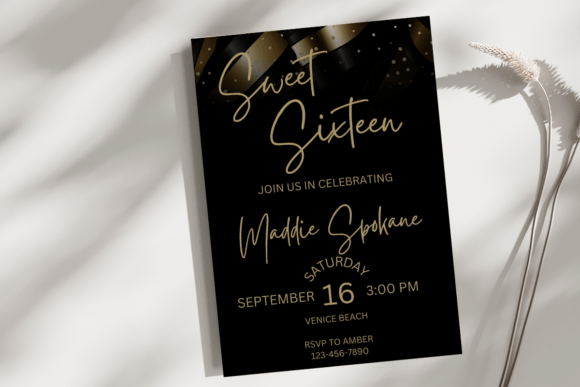
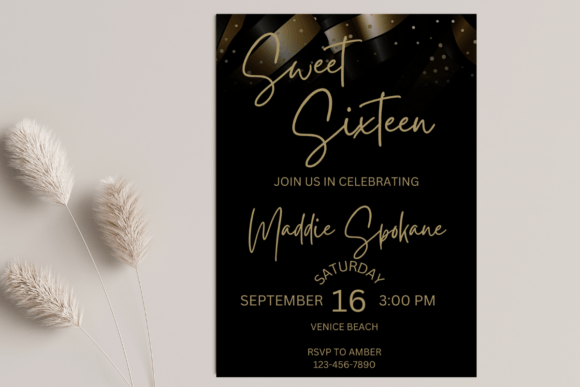
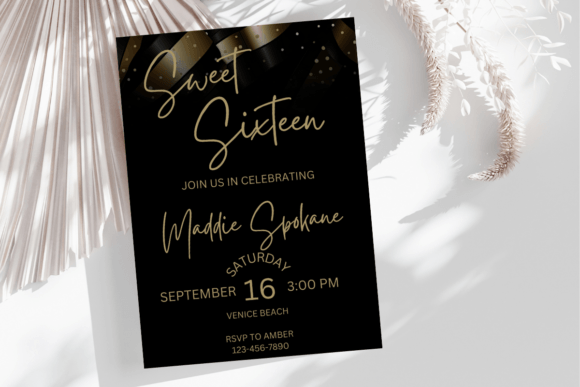
Black Gold Sweet Sixteen Birthday Invite Graphic by Kat Trinity Designs
Key Takeaways
- Edit text fields before moving any design elements — this prevents layout drift
- Match your template complexity to the audience: clean for teens, editorial for adults, simple for kids’ dark parties
- For home printing, export as PDF Print not JPEG — dark backgrounds compress badly as JPEG
- Canva-native templates are fastest for editing; downloaded files need to be imported first
- The gold-on-black look is the most versatile teen milestone option — reads well digitally and in print
FAQ — Birthday Template Aesthetic Black
Can I edit a black Canva template on my phone?
Yes — Canva’s mobile app has full editing. For dark templates specifically, pinch to zoom into the text areas before editing so you can see the contrast clearly on a smaller screen.
Why does my black template look grey after printing?
Home inkjet printers often render pure black as a mix of CMYK colours, which can print as very dark grey rather than true black. Use “Print with black ink only” setting if available, or print at a copy shop where the press calibration is consistent.
How do I add a photo to a dark aesthetic birthday template?
In Canva: upload your photo, drag it into the designated photo frame or over an image placeholder. If there’s no photo area, add it as a new element and adjust the transparency to blend with the dark background — 85–90% opacity usually looks intentional rather than pasted-in.
What font works best on a black aesthetic birthday template?
Script fonts (thin, flowing) in white or gold read well against dark backgrounds on screen. For print, avoid very thin script weights — they lose definition at small sizes. Semi-bold sans-serif in white is the most print-reliable option for dark backgrounds.
Can I use these templates for a party business?
Templates with a commercial licence can be used for client orders. Check the individual product licence — most subscription downloads include commercial use, but verify before selling personalised versions.